Summer Gnome Coloring Pages for KDP: A Practical Guide for Publishers and Creators
Creating a successful children’s coloring book on Amazon KDP requires more than just a cute theme. You need ready-to-print files, consistent formatting, and designs that appeal to both kids and the adults buying for them. The Summer Gnome Coloring Pages collection offers exactly that: a complete set of vector illustrations and print-ready files designed for high-content book publishing. Whether you are an experienced KDP publisher or just starting to build your own activity book line, understanding how these assets fit into your production workflow can save you time, reduce formatting errors, and help you deliver a polished product every time.
This guide walks through what these coloring pages include, how to integrate them into your book creation process, and practical tips for using the provided file formats efficiently. The focus is on real workflow integration—not hype—so you can plan your next project with confidence.
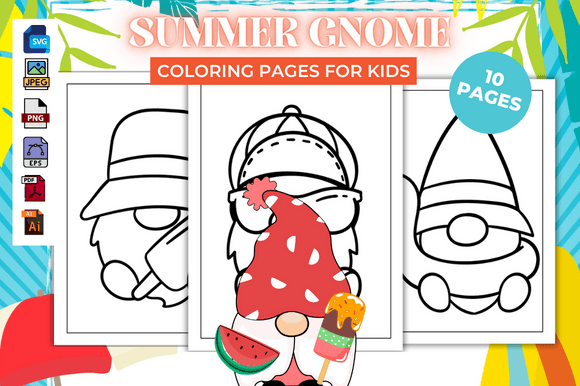
What Are Summer Gnome Coloring Pages?
These are a set of ten summer-themed gnome illustrations designed specifically for children’s coloring books. Each page features a single artwork sized to 8.5″ x 11″, the standard trim size for paperback activity books on KDP. The collection comes with a print-ready PDF file plus all the major vector and raster formats: AI, EPS, JPG, PNG, and SVG. This variety means you can work with them in any design software—Adobe Illustrator, Affinity, Inkscape, or even Canva—and still maintain full control over resizing, recoloring, or layout adjustments.
Because the files are pre-tested for KDP and set to no bleed, you can drop them directly into a KDP interior template without having to worry about margin or trim issues. For someone building multiple book titles, this kind of plug-and-play asset is a practical time-saver.
Where the Files Fit in Your Publishing Workflow
The publishing workflow for a children’s coloring book typically follows four stages: planning, interior assembly, cover design, and upload. Each stage benefits from having versatile, clean source files.
1. Planning and Content Selection
Before you open any software, decide how many pages your book will have and which illustrations you will use. With ten distinct gnome designs, you have enough for a short book of about 20 interior pages (one gnome per spread, or single-sided pages). If you prefer a book with 30 to 40 pages, you can repeat some designs with different backgrounds or combine them with other themed pages. The Summer Gnome set works well as a standalone title or as part of a four-season gnome series.
2. Interior Assembly
This is where the provided file formats matter most. Start with the print-ready PDF if you want minimal editing. Open it in a program like Adobe Acrobat or preview it to confirm page order. Because the PDF is set to 8.5″ x 11″ with no bleed, it matches the default KDP paperback template. You can insert it directly into your manuscript creator.
If you need to customize—for example, add your own copyright page, adjust contrast, or add a subtle background pattern—use the EPS or AI files. These vector formats allow you to scale without quality loss. The SVG files work well for web previews or if you want to upload them to a platform that supports scalables, but for printing, stick with AI or EPS.
The PNG and JPG versions (300 dpi assumed) are useful if you are assembling the book in Canva or Microsoft Word, where vector handling is limited. Simply import the images and arrange them on the page. Just be sure to set your document dimensions to 8.5″ x 11″ and keep margins at least 0.25” inside the trim edge.
3. Quality Control and Consistency
Before uploading, check each illustration for resolution, color depth, and alignment. Since the files come from a single source, the line thickness, style, and tone should be uniform across all ten pages. This consistency is crucial for a professional-looking book. If you plan to sell the same title in both paperback and Kindle versions, use the JPG or PNG files for the fixed-layout Kindle page—they handle well in Kindle Create and preserve the gnome details.
4. Upload and Testing
When you upload to KDP, the system will check the interior file for bleeds, trim size, and margins. Because the provided PDF is no-bleed, you must make sure your book interior type is set to “No Bleed” in the KDP wizard. If you later decide to add bleed for a full-page design, you can open the EPS or AI files, extend the artboard to include a 0.125” bleed area, and re-export a new PDF. This flexibility saves you from having to redraw anything.
Practical Implementation Tips
Here are a few observations from working with similar coloring page assets, tailored to the Summer Gnome set:
- Use the AI file for global changes. If you want to change the line color from black to dark gray (better for crayons), open the AI file and adjust the stroke color on the entire artwork at once. Then export individual pages.
- Create a master document. In InDesign or Scribus, place the PDF pages as linked images. This way, if you update any illustration later, the book interior updates automatically.
- Organize your files by format. Create subfolders for PDF, EPS, AI, JPG, PNG, and SVG. This helps when you need to locate a specific version for a different purpose (e.g., using the SVG for a blog post preview).
- Test print one page before bulk production. Print a single gnome page on your home printer to verify that the line thickness looks good and that the interior margins leave enough space for binding.
- Combine with other themed sets. When you have multiple gnome packs, you can mix them to create a larger book. Just ensure the illustration style remains consistent. The Summer Gnome set has a clean, friendly line art style that pairs well with other simple vector illustrations.
Long-Term Use and Repurposing
Besides using these pages for a single KDP book, consider how they can serve your broader content business. The SVG and EPS files let you resize the gnomes for other products: stickers, activity sheets, greeting cards, or even clip art for educational worksheets. The PNG files with transparent backgrounds can be used in digital products like Etsy printables or educational apps. Thinking of the collection as a versatile asset rather than a one-time interior gives you more value from your purchase.
For publishers building a series, the consistency of these gnomes across ten pages provides a solid template for future volumes. You can swap out the summer theme for spring, fall, or winter by recoloring the background elements or adding seasonal props in a vector editor. The base gnome anatomy stays the same, so your audience will recognize the style from book to book.
Workflow Integration Summary
Integrating the Summer Gnome Coloring Pages into your KDP publishing process comes down to understanding file formats and choosing the right one for each stage. Start with the PDF for quick assembly, use EPS or AI for customization, rely on JPG or PNG for non-vector tools, and keep the SVG files for any web or digital promotional materials. Pre-check your book setup on KDP to avoid bleed mismatches, and always verify that the interior margins leave enough room for the binding.
By treating these files as modular components in a reproducible workflow, you can publish a professional children’s coloring book with minimal friction. The summer gnome theme adds seasonal appeal, but the underlying production method works for any themed coloring page set you choose to build or purchase.
Whether you are publishing your first KDP coloring book or adding a new title to an existing catalog, having print-ready files with multiple format options streamlines everything from layout to upload. The Summer Gnome Coloring Pages deliver exactly that, letting you focus on the business of publishing rather than the technical headaches of file creation.
Last updated: June 2025